
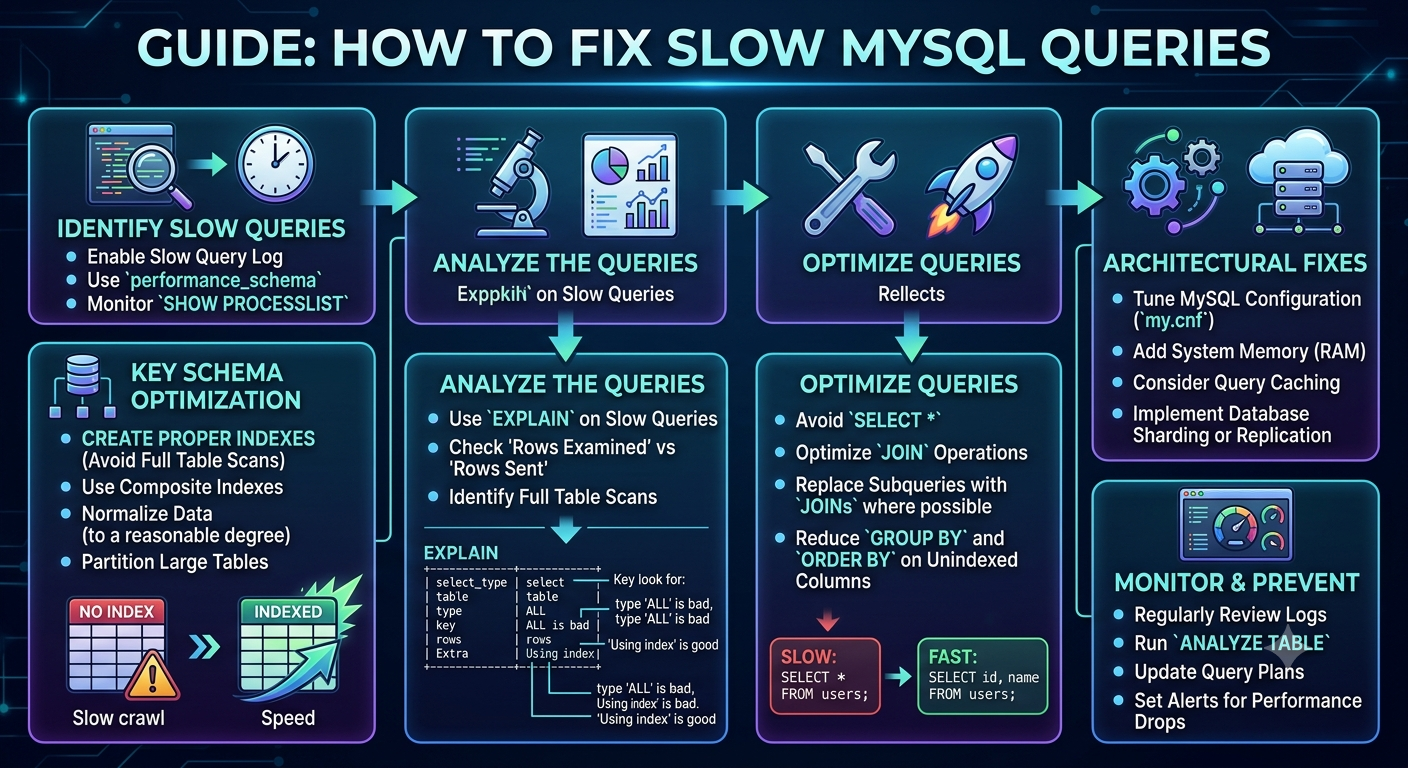
Why MySQL Queries Become Slow
Slow database queries are one of the most common performance bottlenecks in web applications. A single poorly optimized query can bring an entire application to its knees, especially under load.
When a MySQL query suddenly gets slow, the cause is usually one of a handful of things: a missing index, a query written in a way the optimizer cannot handle efficiently, a schema change that quietly invalidated an existing index, or a table that has grown until its old indexes stopped being selective enough.
Other common root causes include a buffer pool that is too small, forcing MySQL to read from disk instead of RAM, which is orders of magnitude slower than memory access. Poorly written SQL — including subqueries that run once per row, SELECT * pulling unnecessary columns, or functions applied to indexed columns — can also prevent MySQL from using indexes at all. Table locks and lock contention from large bulk operations, outdated table statistics, and even optimizer bugs in older MySQL versions can all contribute to slow performance.
A useful rule of thumb: if a query suddenly got slow after a table grew, the problem is almost always a missing index. If a query was always slow, the issue is more likely query structure or server configuration.
Step 1: Check Your MySQL Version First
Before diving into fixes, check your MySQL version. Different versions include different optimization features, indexing capabilities, and execution plan improvements. MySQL 8.0, 8.4, and newer versions support features such as invisible indexes, descending indexes, histograms, and EXPLAIN ANALYZE.
It’s also worth noting that MySQL 8.0 reached end-of-life in April 2026, and several optimizer bugs affecting prepared DELETE/UPDATE statements and partitioned table scans were fixed in MySQL 8.4 LTS. If you’re running an older version, upgrading alone can resolve certain classes of slow query problems.
Step 2: Enable and Use the Slow Query Log
The slow query log is one of the most practical tools for tracking down performance problems. It records queries that take longer than a threshold you define, writing them to a file or table along with execution time, rows examined, rows sent, and a timestamp. The overhead is minimal — mostly the cost of writing to disk when a slow query is detected — which is why most production databases run it permanently.
You can enable it without restarting MySQL:
SET GLOBAL slow_query_log = 'ON';
SET GLOBAL long_query_time = 1;
SET GLOBAL slow_query_log_file = '/var/log/mysql/slow.log';
SET GLOBAL log_queries_not_using_indexes = ON;
This setup logs every query taking longer than one second, and also flags queries that aren’t using indexes at all — even if they technically run fast on small tables today.
Once the log is collecting data, use a tool like mysqldumpslow to summarize and rank the worst offenders by total time, average time, or frequency. This turns a raw log file into a prioritized list of queries worth investigating first.
Step 3: Analyze Execution Plans with EXPLAIN and EXPLAIN ANALYZE
Once you’ve identified a slow query, the next step is understanding exactly how MySQL is executing it. The EXPLAIN statement shows the query’s execution plan without running it:
EXPLAIN SELECT * FROM users WHERE email = 'user@example.com';
Three columns matter most when reading the output. The type column tells you the join type — ALL means a full table scan and is usually a red flag. The key column shows which index, if any, MySQL actually chose to use. The rows column estimates how many rows MySQL expects to examine to produce the result — lower is better.
For deeper insight, EXPLAIN ANALYZE actually runs the query and shows real execution statistics alongside the plan:
EXPLAIN ANALYZE
SELECT customer_id, SUM(total)
FROM orders
WHERE created_at >= '2026-01-01'
GROUP BY customer_id;
Use this to compare MySQL’s estimated row counts against the actual rows processed. If the estimate is far from reality, your table statistics or indexes likely need attention.
You can also query the performance schema directly to find your most resource-intensive queries overall:
SELECT * FROM performance_schema.events_statements_summary_by_digest
ORDER BY SUM_TIMER_WAIT DESC
LIMIT 10;
Step 4: Add the Right Indexes
Missing indexes are the single most common cause of slow MySQL queries. Indexes allow MySQL to locate matching rows directly instead of scanning an entire table row by row.
The general rule is to create indexes on columns that are frequently used in WHERE, JOIN, ORDER BY, and GROUP BY clauses. For queries that filter on multiple columns together, composite indexes — a single index covering several columns in the right order — can cut query time dramatically, sometimes from seconds down to milliseconds.
However, indexing isn’t free. Indexes drastically reduce query execution time, reduce CPU usage by preventing full table scans, and speed up sorting and grouping operations. But they also slow down INSERT, UPDATE, and DELETE operations, since every index must be updated alongside the underlying data. They increase disk space usage, and over time can become fragmented, sometimes requiring an OPTIMIZE TABLE command to restore efficiency.
The practical takeaway: don’t index every column. Focus on the columns that actually appear in your slowest queries’ filter and join conditions, and periodically review whether older indexes are still earning their keep.
Step 5: Rewrite Queries That Prevent Index Usage
Even with the right indexes in place, the way a query is written can prevent MySQL from using them at all.
One common mistake is wrapping an indexed column in a function:
-- Bad: index on created_at is ignored
SELECT * FROM orders WHERE YEAR(created_at) = 2025;

-- Good: rewrite as a range condition
SELECT * FROM orders
WHERE created_at >= '2025-01-01' AND created_at < '2026-01-01';
In the first version, MySQL has to compute YEAR(created_at) for every row before it can compare the result, which makes the index on created_at useless. The rewritten version uses a plain range comparison, which the index can be used for directly.
Implicit type coercion causes a similar problem in a way that’s easy to overlook. If user_id is defined as INT but you compare it to a string, MySQL converts every row before it can compare:
-- Bad: coerces every row
SELECT * FROM users WHERE user_id = '42';

-- Good: types match
SELECT * FROM users WHERE user_id = 42;
Subqueries are another frequent source of slowness. Transforming a WHERE id IN (SELECT...) pattern into an INNER JOIN can often yield a significant speed improvement, sometimes by an order of magnitude, because the optimizer can plan a join far more efficiently than a correlated subquery.
Step 6: Eliminate N+1 Query Patterns
N+1 is what happens when application code runs one query to fetch N parent rows, and then runs N additional queries to fetch related data — one per parent row. Instead of one round trip to the database, you end up with N+1 round trips.
For example:
-- One query to get 100 orders
SELECT id FROM orders WHERE customer_id = 42;

-- Then 100 separate queries, one per order
SELECT * FROM order_items WHERE order_id = ?;
This pattern is extremely common in applications using ORMs, where lazy-loading relationships silently triggers a new query for each row in a loop. The fix is almost always to batch the related lookups into a single query — for example, fetching all order_items for all 100 order IDs at once with a single WHERE order_id IN (...) query, or using a join.
Step 7: Tune Server Configuration
Query-level fixes only go so far if the underlying server configuration isn’t suited to your workload.
The InnoDB buffer pool is the most important setting to get right. On dedicated database servers, innodb_buffer_pool_size should typically be set to 60-75% of available RAM. A buffer pool that’s too small forces MySQL to repeatedly read data from disk instead of serving it from memory, and disk I/O is orders of magnitude slower than RAM access.
Disk hardware matters too. If your workload is I/O bound, switching from standard HDDs to NVMe SSDs is often the most cost-effective way to improve performance across the board, since it reduces the penalty for every cache miss.
Data types also play a surprisingly large role. Storing values like an age as VARCHAR(255) or a status flag as TEXT wastes memory and disk space and prevents efficient indexing. Using the smallest appropriate data type for each column saves space and allows more of your indexes to fit into the buffer pool at once, improving cache efficiency across the board.
Step 8: Batch Large Write Operations
Large UPDATE and DELETE statements that affect millions of rows at once can hold locks for extended periods, blocking other queries and causing cascading slowdowns across the application.
Batching these operations with LIMIT, running them in smaller chunks in a loop, reduces lock contention significantly. Each batch holds its lock for a much shorter time, allowing other queries to interleave between batches rather than queuing up behind one massive operation.
Step 9: Keep Table Statistics Fresh
MySQL’s query optimizer relies on table statistics to decide how to execute a query — which index to use, which table to read first in a join, and how many rows to expect at each step. When these statistics become stale, particularly after large data imports, bulk deletes, or rapid table growth, the optimizer can make poor decisions even when the right indexes exist.
Running ANALYZE TABLE periodically, especially after major data changes, helps keep the optimizer’s view of your data accurate and ensures it continues choosing efficient execution plans as your tables evolve.
Step 10: Set Up Ongoing Monitoring
Fixing today’s slow queries doesn’t prevent tomorrow’s. As applications evolve, new queries get introduced, data volumes grow, and previously efficient indexes can become less selective over time.
Monitoring tools that continuously track query performance make it possible to catch regressions early — ideally before they impact users. Combined with a permanently enabled slow query log and periodic EXPLAIN ANALYZE checks on your most important queries, ongoing monitoring turns query optimization from a one-time fire drill into a routine part of database maintenance.
Quick Reference: Common Causes and Fixes
| Symptom | Likely Cause | Fix |
|---|---|---|
| Query suddenly slow after table growth | Missing or non-selective index | Add a targeted or composite index |
EXPLAIN shows type: ALL | Full table scan | Add an index on the filtered column |
| Index exists but isn’t used | Function wrapped around indexed column, or type mismatch | Rewrite condition as a range, match data types |
| Query was always slow | Inefficient query structure | Rewrite subqueries as joins, remove SELECT * |
| Many similar queries in a loop | N+1 query pattern | Batch related lookups into one query |
| Bulk update/delete blocking other queries | Lock contention | Batch the operation with LIMIT |
| High disk I/O, low cache hit rate | Buffer pool too small | Set innodb_buffer_pool_size to 60-75% of RAM |
| Optimizer choosing bad plans despite indexes | Stale table statistics | Run ANALYZE TABLE |
FAQs About Fixing Slow MySQL Queries
Q1: What is the first thing I should check when a MySQL query is slow?
Start by checking your MySQL version, then enable the slow query log to confirm which queries are actually slow rather than guessing. Once you have a specific query, run EXPLAIN or EXPLAIN ANALYZE on it to see exactly how MySQL is executing it before making any changes.
Q2: How do I enable the slow query log without restarting MySQL?
You can enable it dynamically with SET GLOBAL slow_query_log = 'ON'; along with SET GLOBAL long_query_time = 1; to log queries taking over one second, and optionally SET GLOBAL log_queries_not_using_indexes = ON; to flag queries not using indexes at all.
Q3: What does the type: ALL value mean in EXPLAIN output?
It means MySQL is performing a full table scan, reading every row in the table to find matches. This is usually a strong signal that an index is missing on the column being filtered, joined, or sorted.
Q4: Why isn’t MySQL using my index even though it exists?
This often happens when an indexed column is wrapped in a function (such as YEAR(created_at)), or when there’s a data type mismatch between the column and the value being compared (such as comparing an INT column to a string). Both cases force MySQL to evaluate every row, bypassing the index.
Q5: How many indexes should a table have?
There’s no fixed number, but the rule is to index columns that actually appear in your slowest queries’ WHERE, JOIN, ORDER BY, and GROUP BY clauses — not every column. Each additional index slows down writes and increases storage, so indexes should be added deliberately based on real query patterns, not preemptively.
Q6: What is the N+1 query problem and how do I fix it?
N+1 occurs when one query fetches a list of parent records, and then a separate query runs for each parent to fetch related data — resulting in N+1 total queries instead of one or two. The fix is to batch the related lookups into a single query, typically using WHERE id IN (...) or a join, instead of querying once per row in application code.
Q7: What should innodb_buffer_pool_size be set to?
On a dedicated database server, a common recommendation is to set innodb_buffer_pool_size to roughly 60-75% of the server’s total available RAM. This allows MySQL to keep more data and indexes in memory, reducing slow disk reads.
Q8: Should I upgrade MySQL to fix slow queries?
It can help. Newer MySQL versions, such as 8.0 and 8.4, include optimizer improvements, support for invisible and descending indexes, histograms, and EXPLAIN ANALYZE. MySQL 8.0 reached end-of-life in 2026, and several optimizer bugs affecting prepared statements and partitioned tables were fixed in 8.4 LTS, so upgrading from older versions can resolve certain performance issues directly.
Q9: How do batching and LIMIT help with slow UPDATE or DELETE statements?
Large UPDATE or DELETE operations on millions of rows can hold locks for a long time, blocking other queries. Breaking the operation into smaller batches using LIMIT and running them in a loop reduces how long each lock is held, allowing other queries to run between batches instead of queuing behind one massive operation.
Q10: How often should I run ANALYZE TABLE?
There’s no universal schedule, but it’s good practice to run ANALYZE TABLE after major data changes — such as large imports, bulk deletes, or significant table growth — since these events can make the optimizer’s existing statistics outdated, leading to poor query plans even when correct indexes are in place.
More From Our Blog
If you found this article helpful, you might also enjoy exploring more content from our blog. We regularly publish guides, tips, and insights across a variety of topics to help you stay informed and make better decisions. Feel free to check out our other articles and let us know what you’d like us to write about next.